Introduction & Login
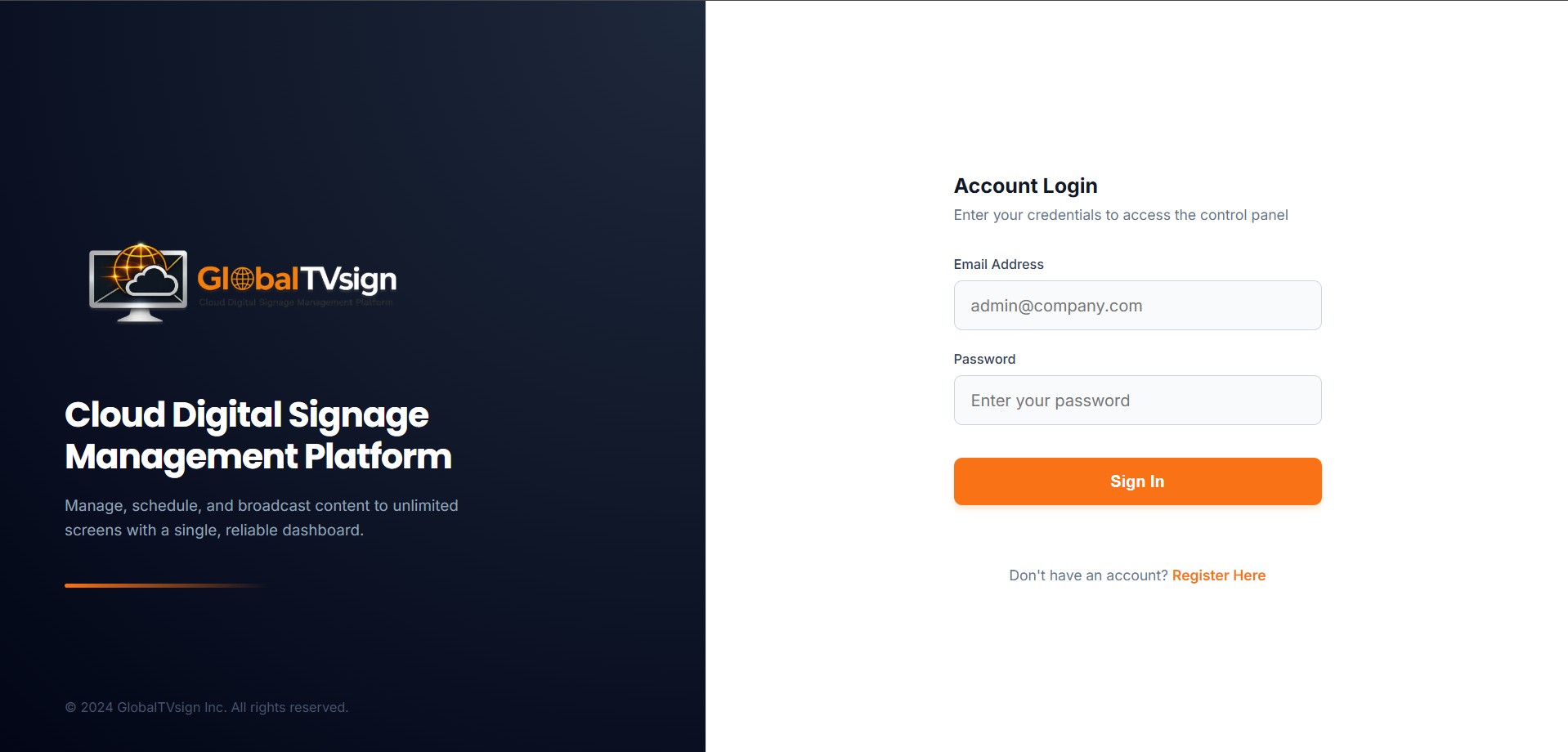
Welcome to GlobalTVsign. This guide will help you navigate and operate your digital signage platform.
How to Access the Platform
- Open your browser (Google Chrome, Microsoft Edge, or Safari).
- Go to the application URL:
app.globaltvsign.com - Enter your registered Email and Password.
- Click Sign In to access your dashboard.
Dashboard
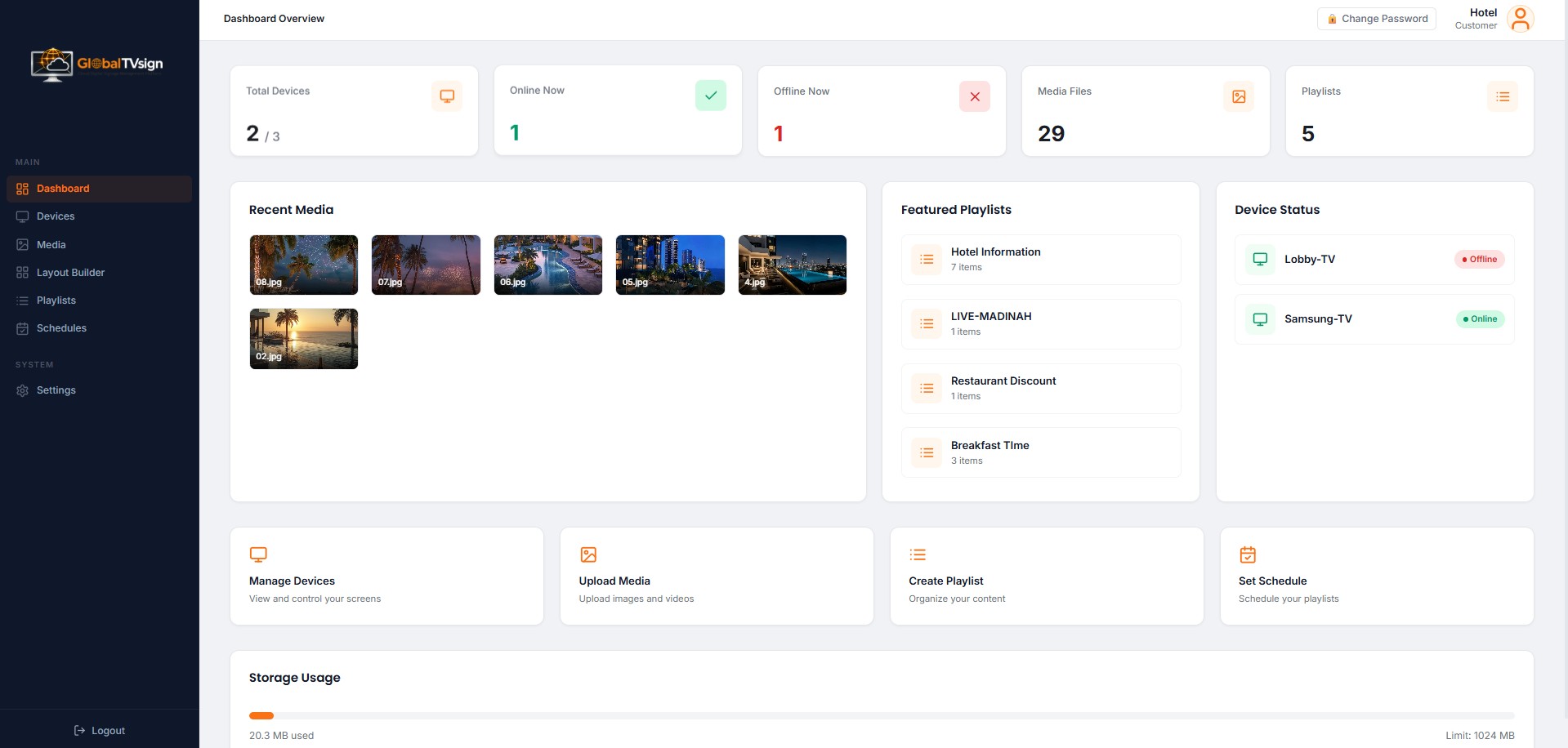
The Dashboard is your control center. It provides a real-time overview of your digital signage network.
- Active Devices: Shows how many screens are online vs your total limit.
- Storage Used: Displays the total cloud storage used by your media files.
- Quick Actions: Easily generate pairing codes or check system status.
Devices (Screen Management)
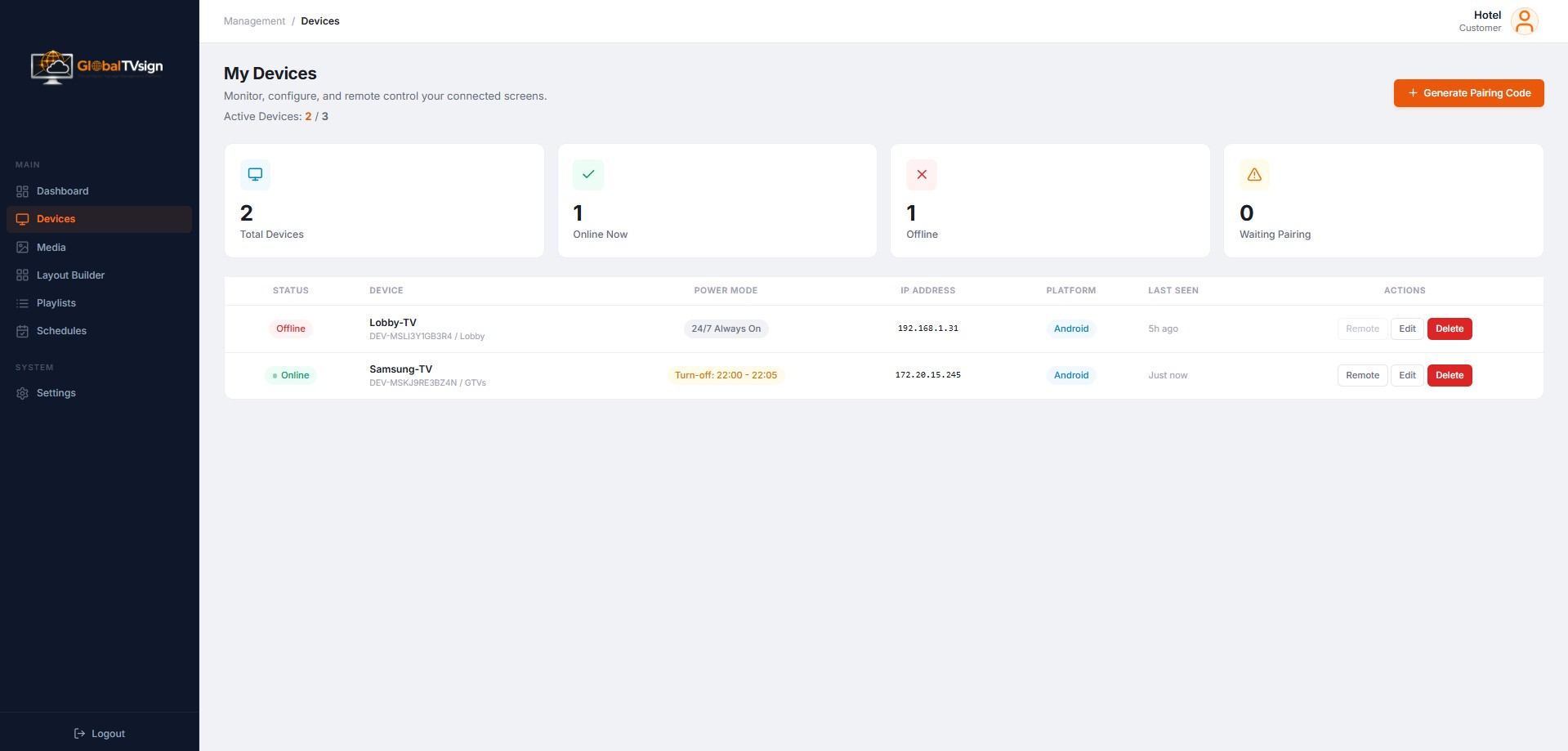
Manage all your connected TV screens. You can monitor their status, configure power settings, and send remote commands.
1. Generate Pairing Code
- Click the Generate Pairing Code button.
- A unique code (e.g., GTV-ABC123) will appear.
- Open the GlobalTVsign Player app on your TV and enter this code.
2. Smart Power Scheduler (Turn-off)
Save energy by automating when your screens turn on and off.
- Click Edit on your selected device.
- Enable Smart Power Scheduler.
- Set the Sleep Time (Turn Off) and Wake Time (Turn On).
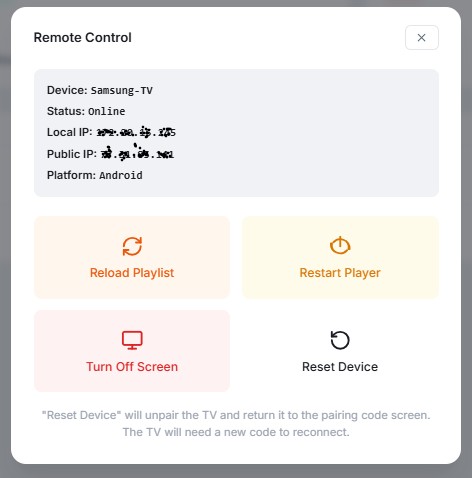
3. Remote Control
Click the Remote button to send instant commands to a screen:
- Reload: Refreshes the playlist on the TV.
- Restart: Restarts the player application.
- Turn Off: Puts the screen to sleep.
Media (Content Library)
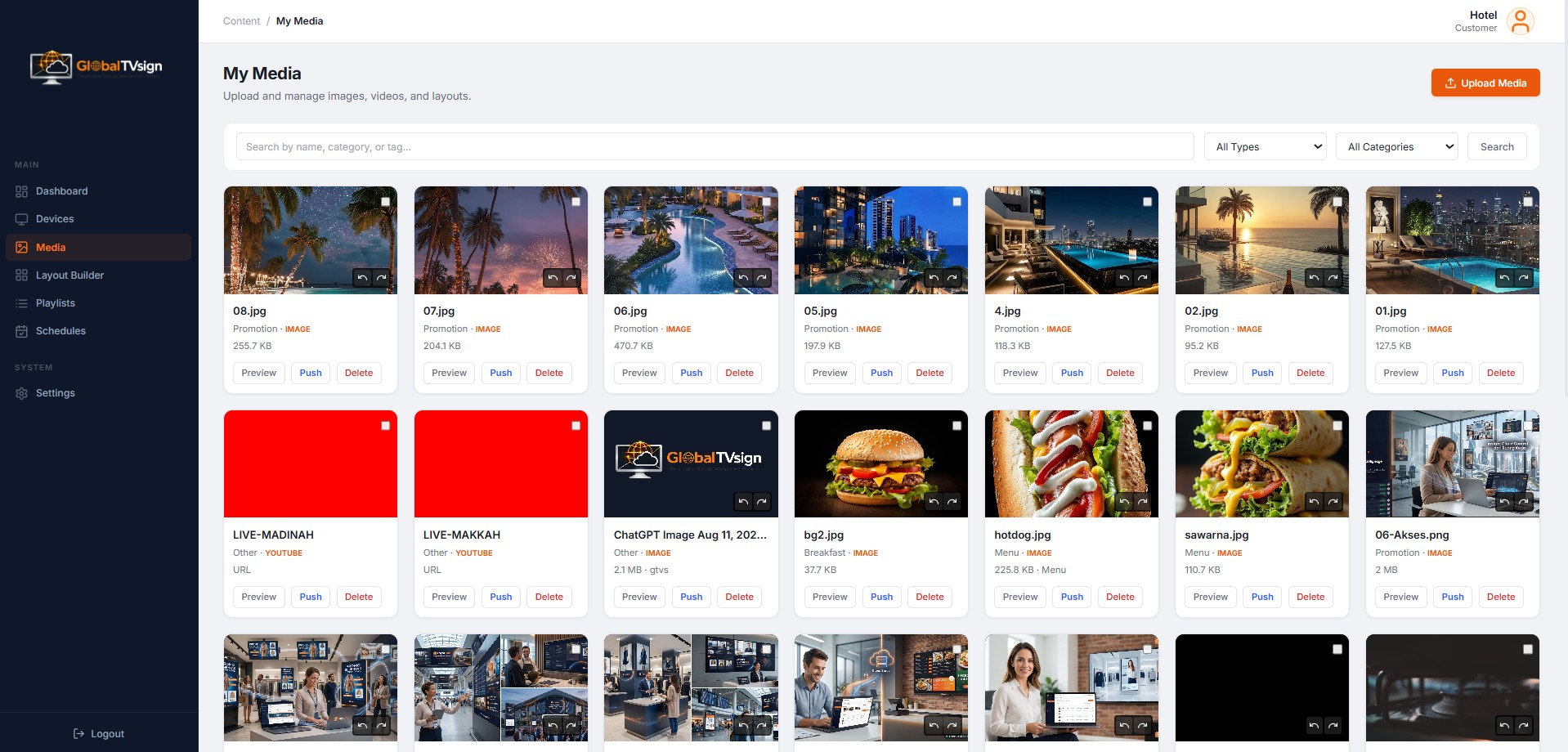
Upload and manage all your images, videos, and YouTube live streams.
Uploading Content
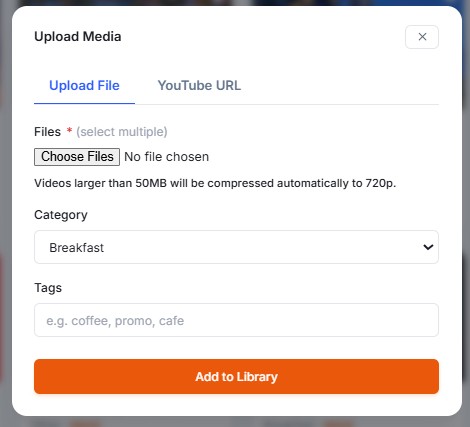
- Click Upload Media.
- Select files from your computer or drag and drop them.
- Add categories and tags to organize your files.
Adding YouTube Links
You can also paste a YouTube URL to stream live content (like news or worship) directly to your screens.
Layout Builder
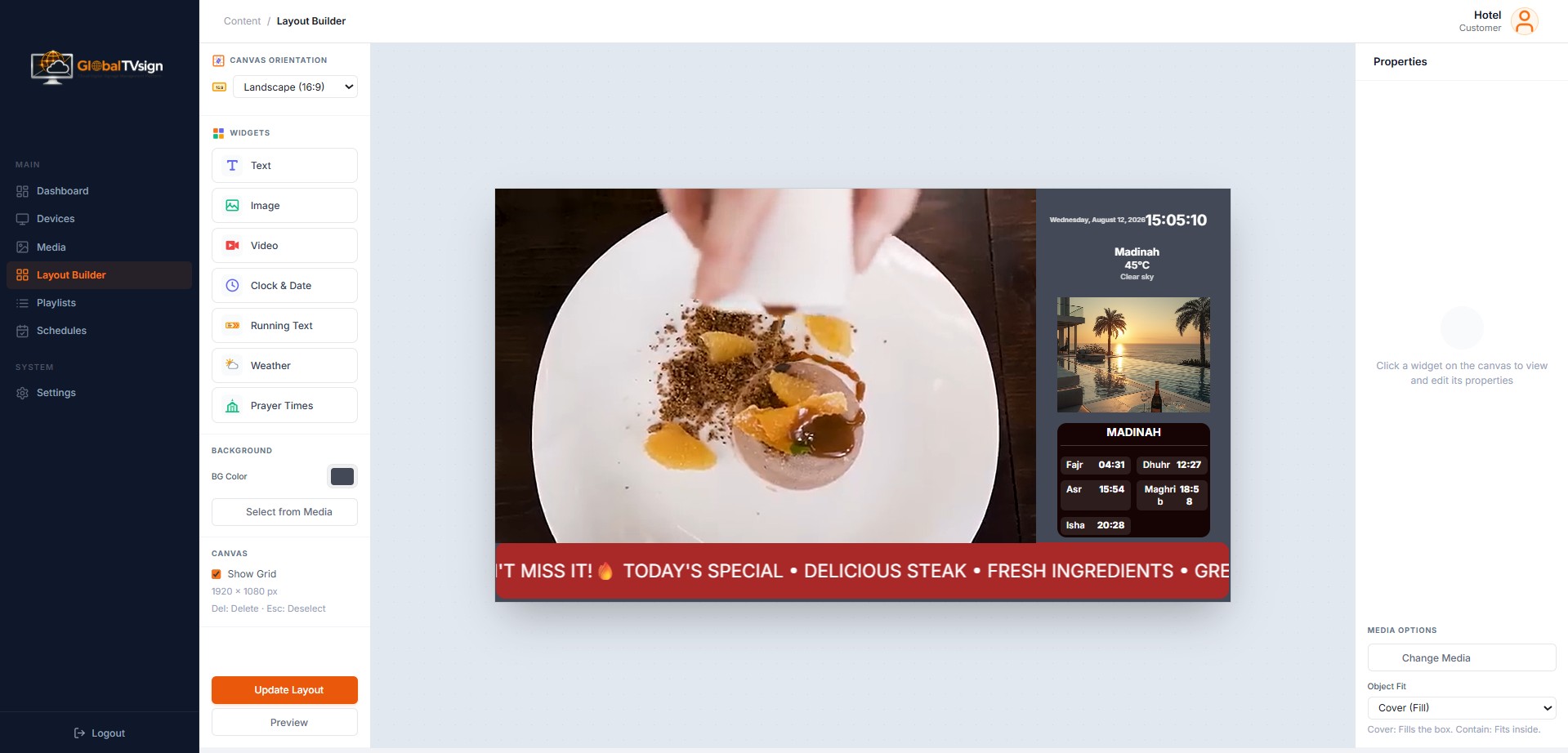
Create custom screen layouts without needing design software. You can split screens and add widgets.
How to Create a Layout
- Go to Media and click Create Layout.
- Choose Landscape or Portrait orientation.
- Drag and drop widgets (Image, Video, Clock, Weather, Running Text) onto the canvas.
- Resize and position them as needed.
- Click Save Layout.
Playlists
Combine your media into a sequence to be displayed on screens.
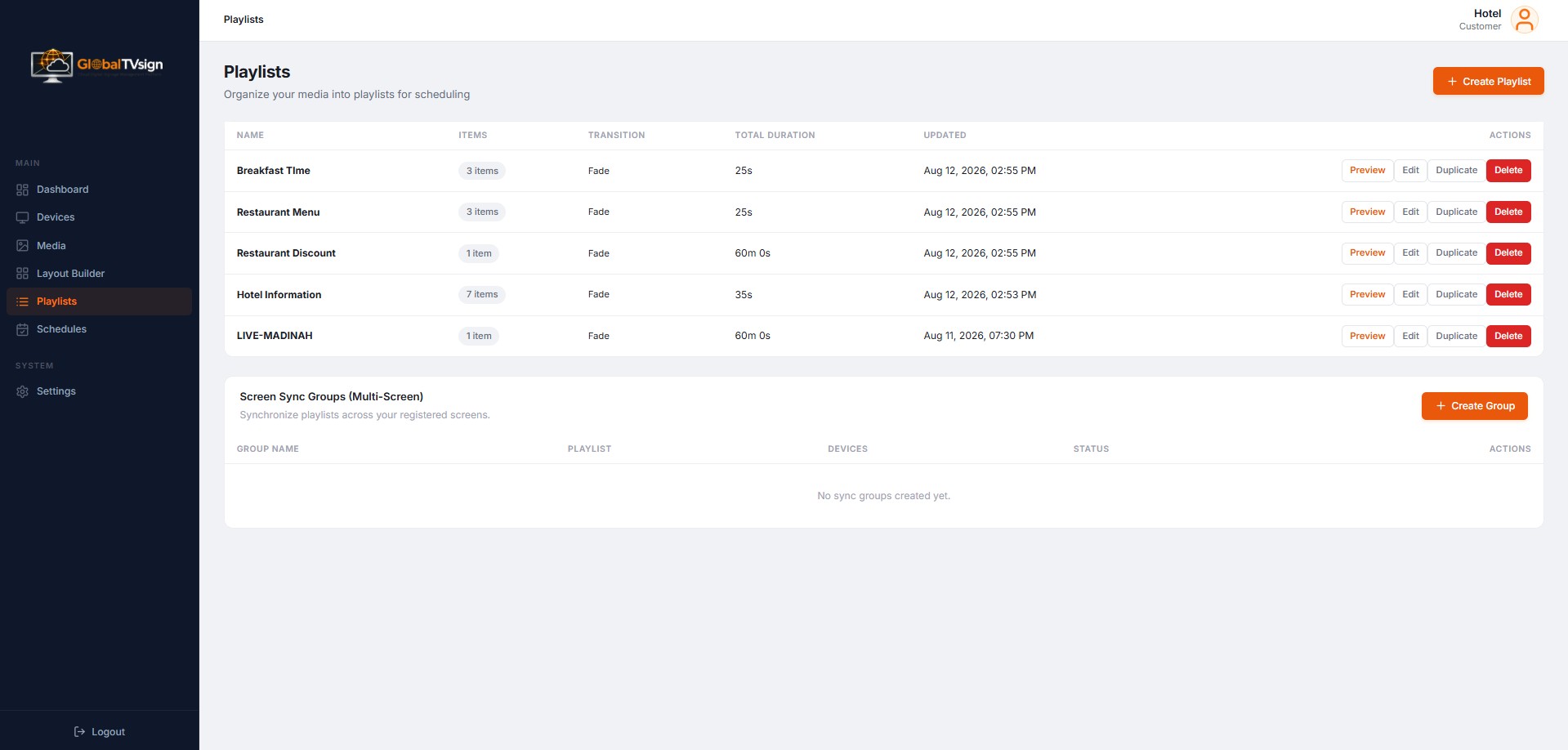
Creating a Playlist
- Go to Playlists and click Create Playlist.
- Name your playlist (e.g., "Morning Promos").
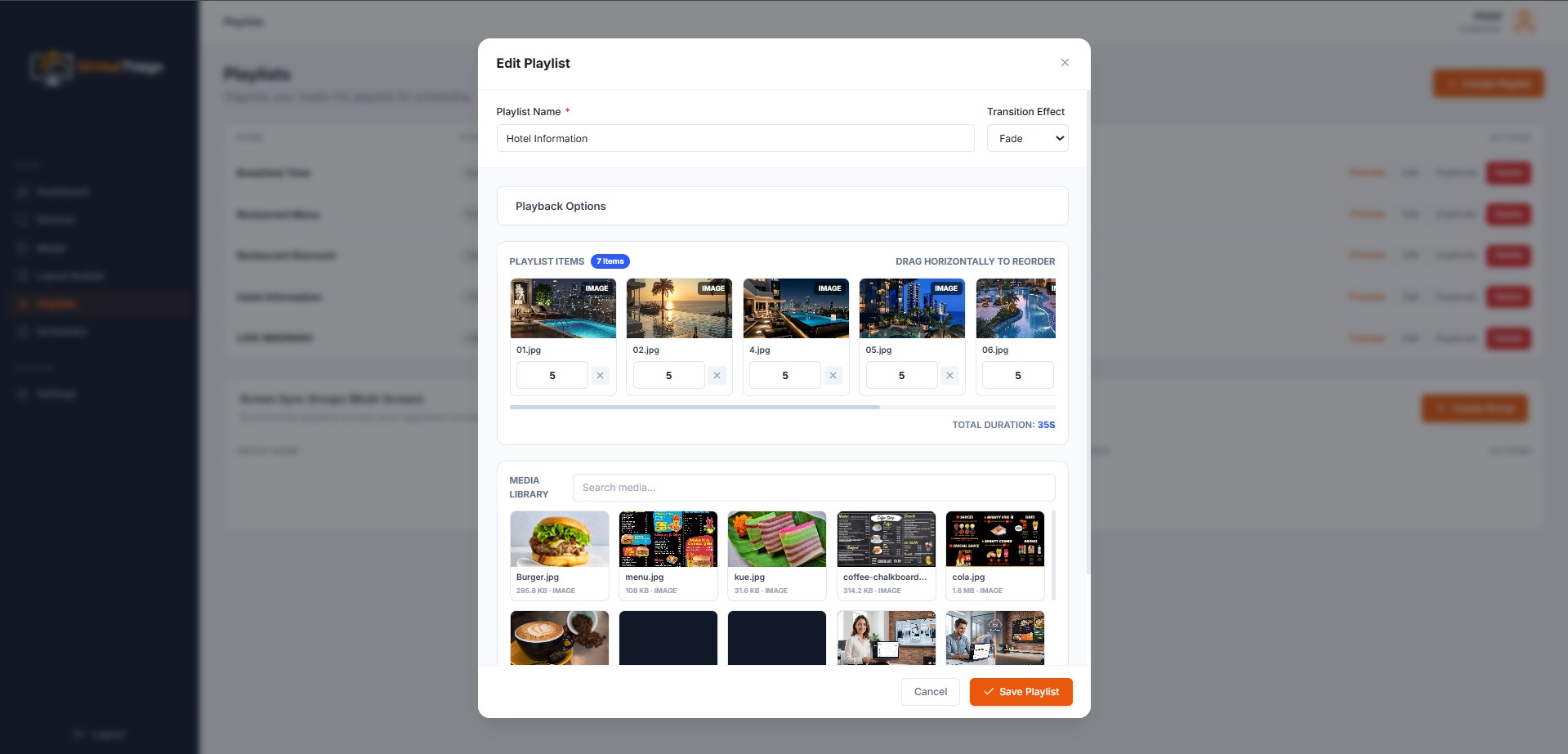
- Click media from the library to add them to the strip.
- Set the Duration (how long each item shows) and Transition effects.
Schedules
Control exactly when your playlists play on specific screens.
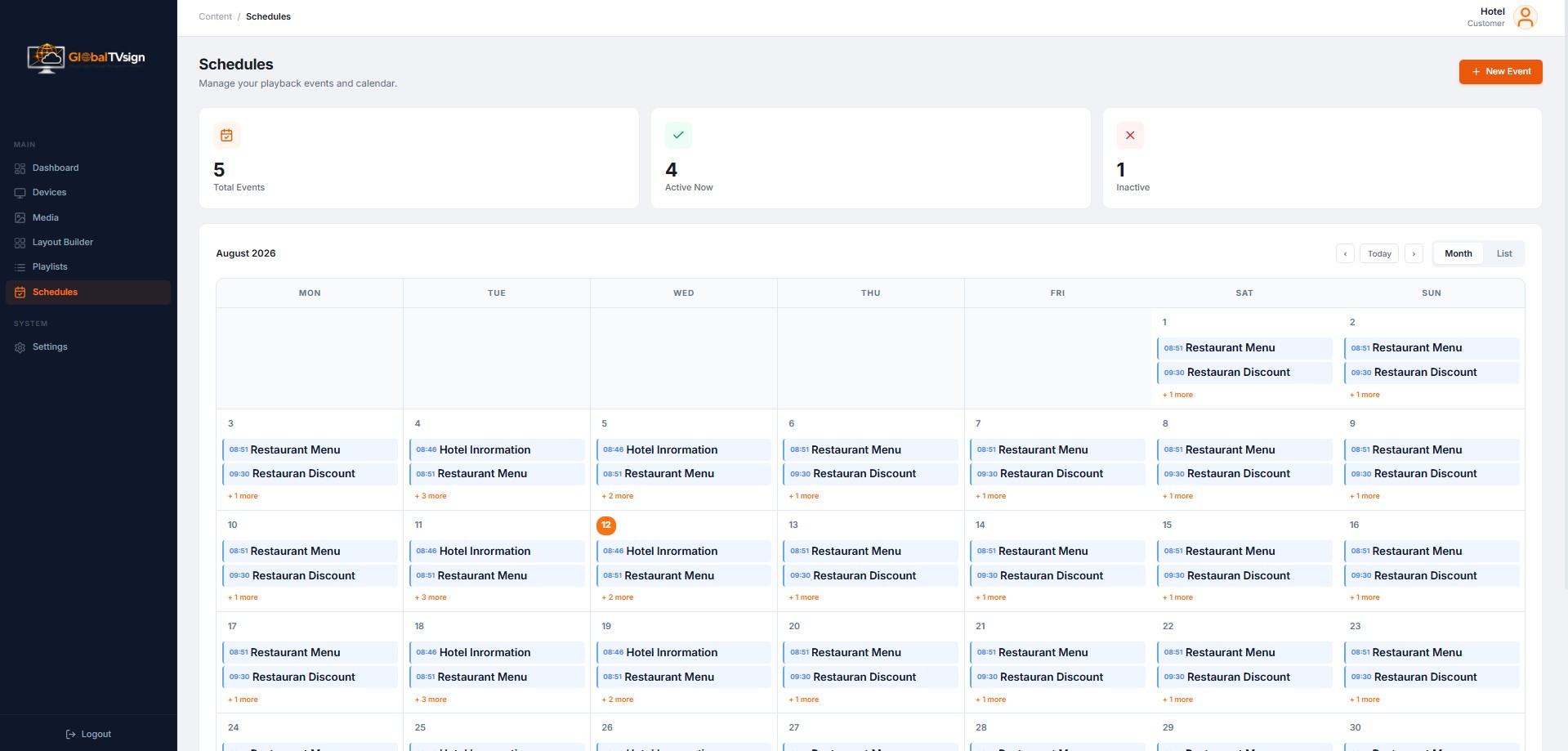
Setting up a Schedule
- Go to Schedules and click Create Schedule.
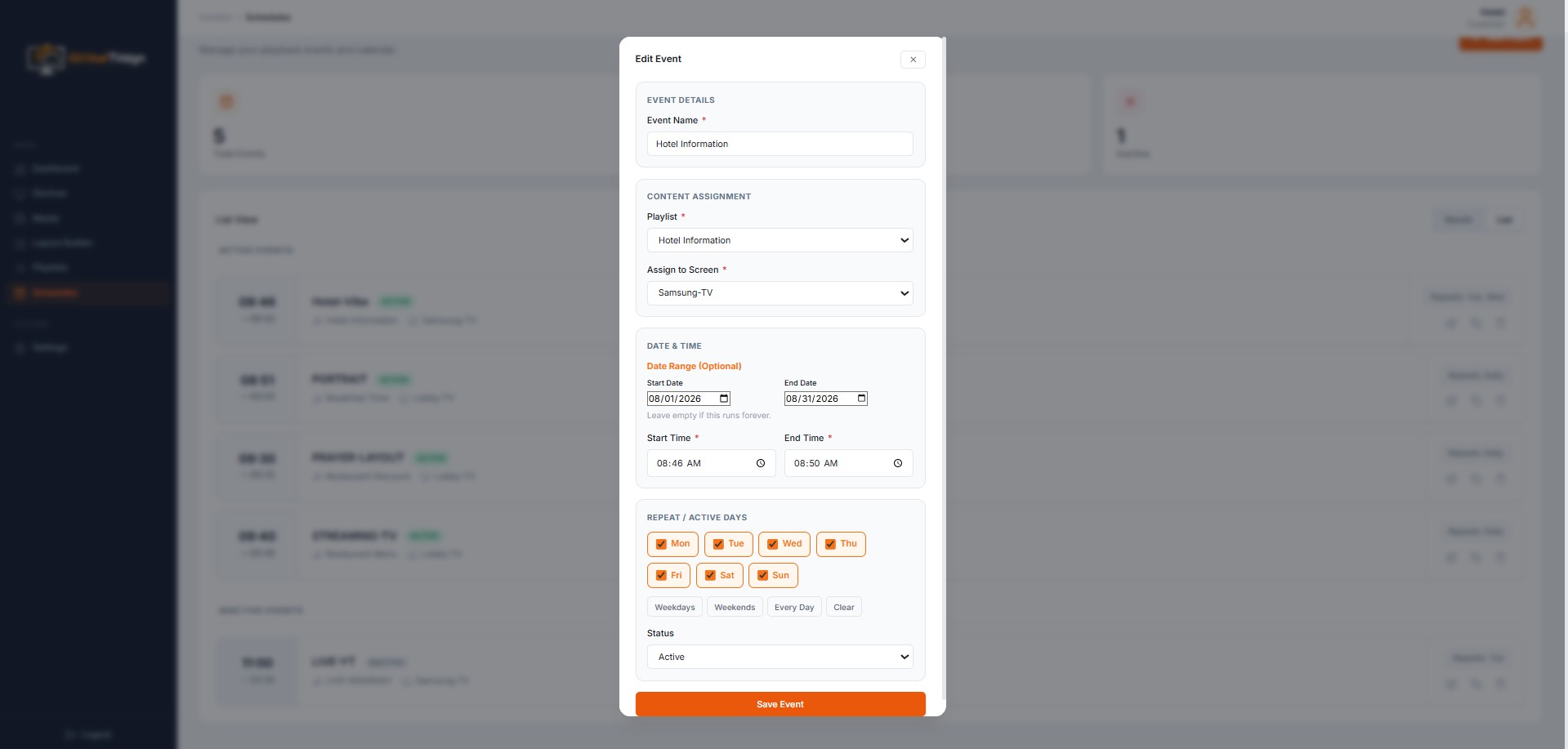
- Select a Playlist and a target Screen.
- Set the Date Range, Active Days (e.g., Mon-Fri), and Start/End times.
- Click Save Schedule. The TV will automatically follow this schedule.
Emergency Broadcast
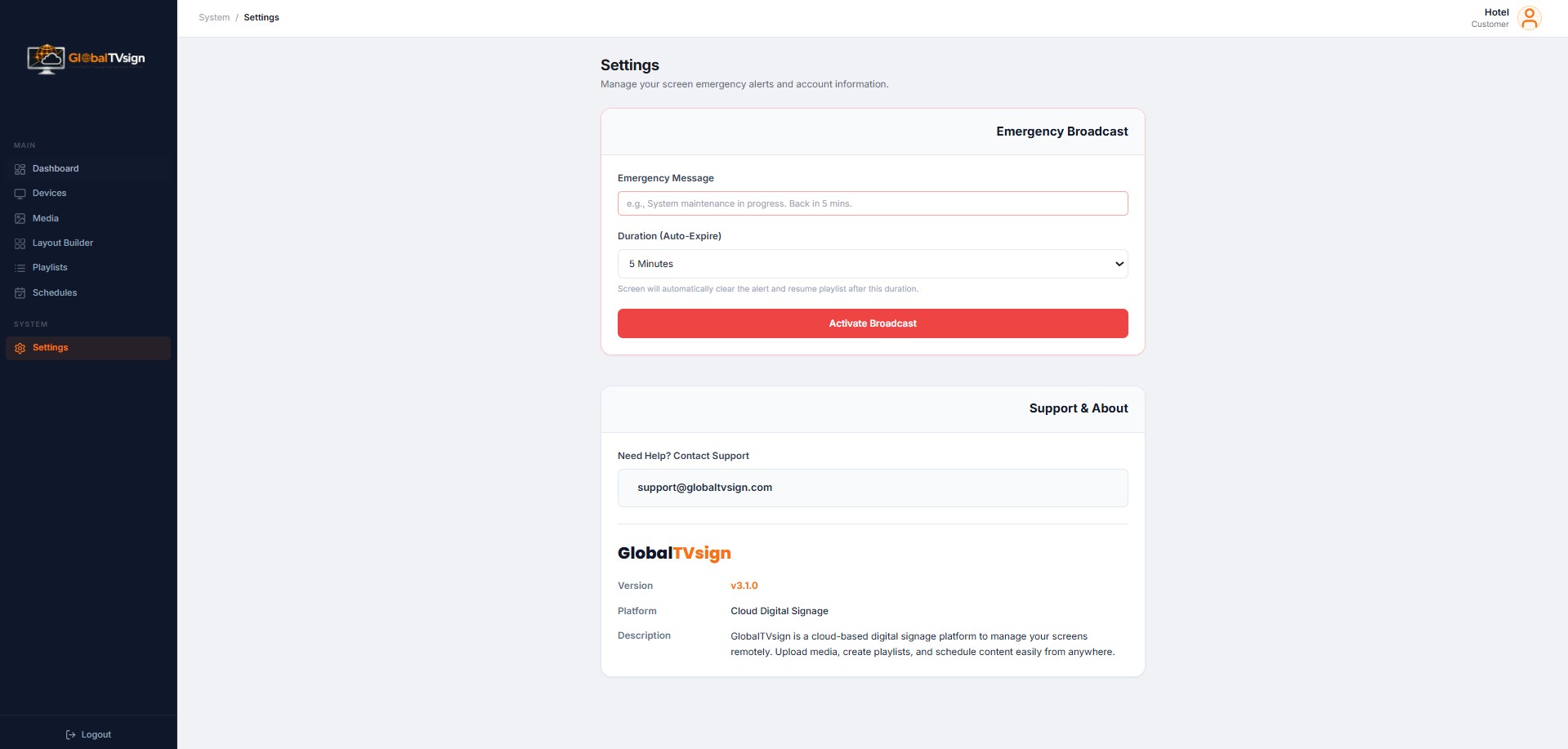
Need to display an urgent message instantly? Use the Emergency Broadcast feature.
- Go to Settings and find the Emergency Broadcast card.
- Type your emergency message.
- Set a duration (e.g., 5 minutes). The system will auto-clear the message after the time expires.
- Click Activate Broadcast. All your screens will immediately override their current playlist to show this message.
Settings & Support
Manage your account information and emergency broadcast settings.
- Emergency Broadcast: Instantly override all screens with an urgent message.
- App Version: Check the current version of the platform.
- Support: If you encounter any issues, you can contact our support team directly.